





01
Enter or paste your items into List A and List B, one item per line. You can also upload .xlsx or .txt files, or use Split CSV to break comma-separated data into lines. Compare Lists accepts any plain-text data.
Compare lists side by side — paste your data, hit Compare, and instantly see what's unique to each, what they have in common, and everything combined.
* Your privacy is protected! No data is transmitted or stored.
Paste, click, done — use Compare Lists to find differences, matches, and more in one click.

Paste your two lists into the side-by-side panels, click Compare, and results appear right away. No account required, no page reload — just open Compare Lists and start comparing.
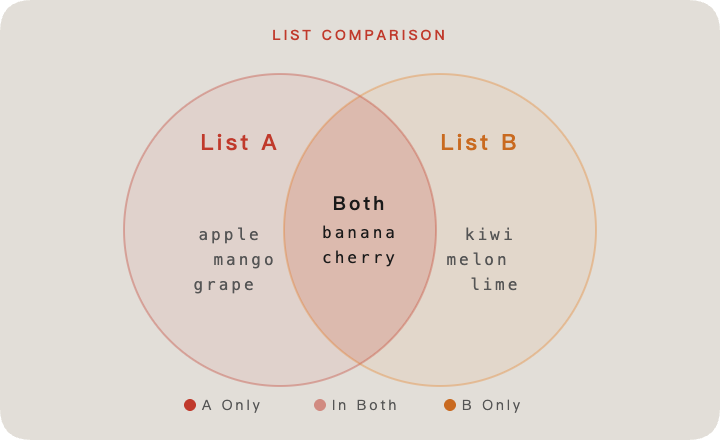
Every time you compare lists, five separate panels appear: items only in List A, items only in List B, items in both lists (Intersection), all unique items combined (Union), and items in exactly one list (Symmetric Difference). Each panel shows a live item count so you can spot differences immediately.


Real-world data is never perfect. Before you compare lists, toggle case sensitivity so "Apple" matches "apple". Strip leading and trailing spaces automatically. Collapse multiple spaces into one. Use the built-in find-and-replace rules to remove prefixes, suffixes, or unwanted characters — all applied before you compare list entries.
Don't waste time copying from spreadsheets. Upload .xlsx, .xls, or .txt files directly into either list panel with the Upload button. If your data is comma-separated, click Split CSV to break values into individual lines — then compare lists instantly.
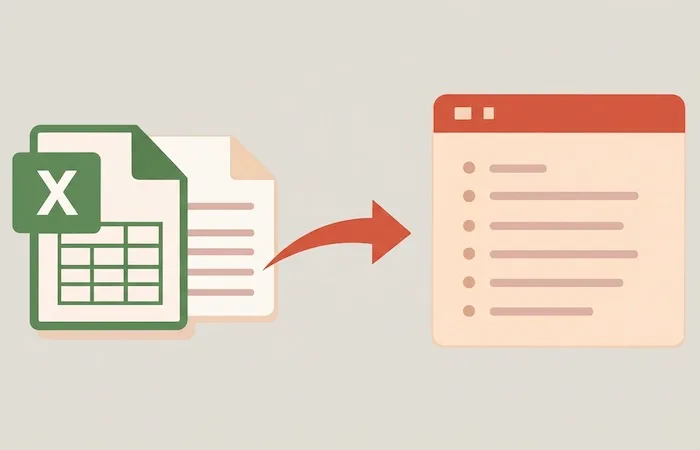

Each result panel in Compare Lists comes with its own toolbar. Copy all items to clipboard, sort alphabetically, or trim spaces and remove duplicates with one click. Download results as .txt or .xlsx files. You can even edit the results directly — add, remove, or modify items before exporting.
Your lists are not uploaded or stored anywhere. When you compare lists on our site, the comparison happens right on your device. Close the tab and everything is gone — no traces left behind.

Compare Lists is a free online list comparison tool that lets you compare two lists side by side and instantly see the differences. Paste your data, click Compare, and get a clear list diff showing what's only in List A, only in List B, and what's shared between them — plus the full union and symmetric difference. No sign-up, no installation — compare lists right in your browser.
When you compare list data with our tool, each input is split by line and processed through your chosen rules — ignore case, trim spaces, collapse whitespace, or apply custom find-and-replace. The engine then computes five result sets in one pass. You can sort, deduplicate, edit, and export each result as .txt or .xlsx. Upload files directly from Excel or use Split CSV to handle comma-separated data. Compare Lists keeps your data safe — nothing is uploaded or stored. Close the tab and it's gone.
Three simple steps to compare lists — paste, adjust, compare.
Other tools make you wait, sign up, or upload your data. Compare Lists doesn't.
Most tools show one diff at a time. Compare Lists gives you five panels in one shot — no clicking around.
Ignore case, trim spaces, collapse whitespace, add find-and-replace rules — compare lists accurately even with imperfect data.
Upload .xlsx files directly, or use Split CSV to handle commas, colons, semicolons, and tabs. Compare lists from any source — no manual reformatting needed.
Every result panel is editable. After you compare lists, tweak, sort, deduplicate, copy, or download results as .txt or .xlsx.
Everything runs in the browser. When you compare lists here, your data is not sent anywhere — close the tab and the data is gone.
No account, no limits. Compare lists as many times as you want, with as many items as you need, completely free.
Everything you need to know about using Compare Lists.
Paste your items into the List A and List B panels, one item per line. Then click the Compare button. Compare Lists will show five result panels: what's only in A, only in B, in both, all items combined, and the symmetric difference.
When you compare lists, you get five panels: Only in A (items exclusive to List A), Only in B (items exclusive to List B), Intersection (items in both lists), Union (all unique items combined), and Symmetric Difference (items in exactly one list, not both).
By default, no — "Apple" and "apple" are treated as the same item. If you need exact matching, turn on the Case Sensitive toggle before you compare lists.
Yes. Compare Lists runs entirely in your browser. Your data is not uploaded to any server and is not stored anywhere. Close the tab and the data is gone.
Yes. Click the Upload button to load .xlsx, .xls, or .txt files directly into either list panel. If your data is comma-separated, use the Split CSV button to break it into individual lines, then compare lists as usual.
Yes. Each result panel has buttons to copy all items to clipboard, download as .txt, or download as .xlsx. Compare Lists also lets you sort, deduplicate, or edit the results directly in the panel before exporting.
Symmetric Difference shows items that appear in only one of the two lists — not in both. It helps you compare list entries and spot what's exclusive to each side. For example, if List A has "apple, banana" and List B has "banana, cherry", the symmetric difference is "apple" and "cherry".
Yes, completely free. No account, no sign-up, no limits on how many times you compare lists or how often you use it.
Compare lists in seconds — paste two lists, click once, and see exactly what's different. Free, private, no sign-up.